What’s the “Today” Dashboard?
You’ll land on your Dashboard when you log in to the Real Appeal® Rally Coach website or app. The Dashboard scrolls horizontally to reveal additional activities and articles for the current day. On the website, you may need to click “See More” under the daily action cards to reveal activities from previous days. On the app, you’ll scroll down. Any article you’ve read will move to your Library. Click Library from the Dashboard to access the content. Whenever you want to return to your Dashboard, click “Dashboard” from your navigation panel.
Can I view articles in my Library after I complete my coaching program?
If you choose not to re-enroll for a second year, you’ll maintain access to the Library and your trackers. No new content will populate, but the content will remain in your Library.
How do I navigate the Rally Coach app?
The Real Appeal Rally Coach app is full of great information to help you spark your transformation. Both Android and iOS platforms are supported. The experiences are similar, with only minor variances in the look and feel of the screens and some of the functionality. Screens scroll both vertically and horizontally.
At the top of the screen, you’ll see information about your upcoming session and any messages from your coach. A navigation tray appears at the bottom of the screen. Tap “Today” to return to the Dashboard from anywhere within the app.
To navigate into your Schedule or your Profile on iOS, tap •••, then “More” to go to your Messages or Settings. On Android, tap the 3 horizontal lines to access your Messages or Settings. Tap the plus sign (+) to open an overlay menu and access your trackers.
How do I view or send messages?
The Message tab appears prominently at the top of the Dashboard. If you have a message from your coach, you’ll see a red dot next to it.
Website:
- Click “Messages”. A scrolling chat window appears down the right side of the page.
- Type your message in the text box in the bottom right corner of the page.
- Click “Send”.
Mobile App:
If you have a message from a coach, you’ll see a red icon next to the coach’s photo. Tapping there will take you to your Messages. You can also tap the three dots •••, then “More” (iOS), or the 3 horizontal lines, then “More” (Android), in the navigation tray, and select “Messages”.
- Tap the red icon or tap “More”.
- Tap “Messages”.
- Tap “Write a message”. A keyboard will appear.
- Tap “Send” to message your coach. As you communicate with your coach, the screen will begin scrolling, and your chat history will be saved.
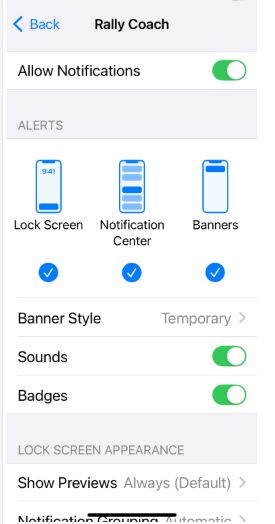
How do I update my app notification preferences?
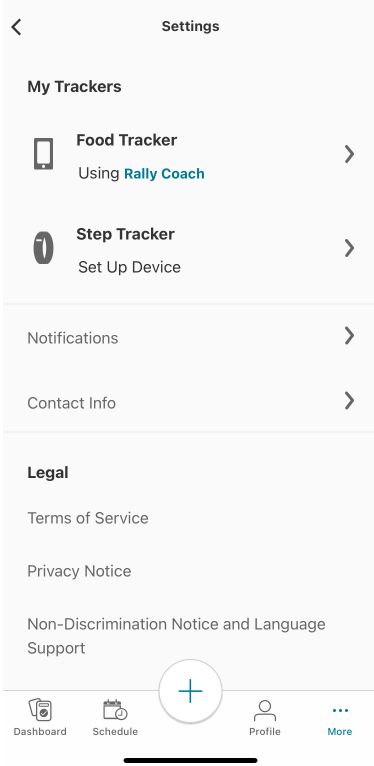
- To change your notifications, navigate to your Profile on iOS, tap •••, then “More”. On Android, tap the 3 horizontal lines to access your Settings.
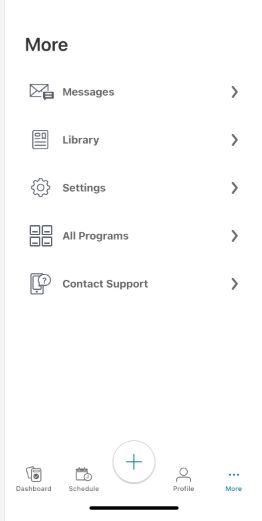
- Select “Notifications”
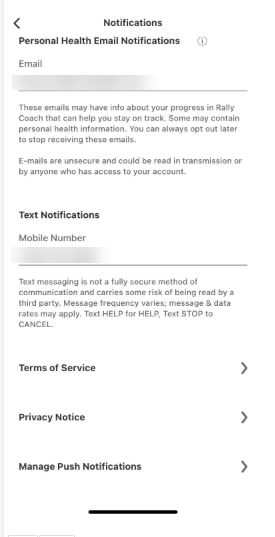
- Verify your email and phone number for Email and Text notifications
- For Push notifications, select “Manage Push Notifications”
- This will take you to your mobile device settings to allow the App to send push notifications
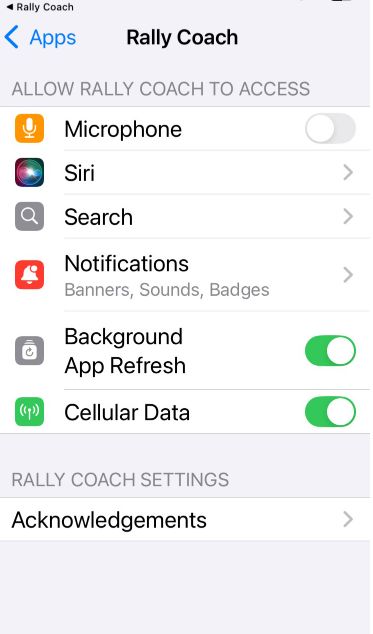
- Toggle to “Allow Notifications” and adjust sounds and badges to your preference.
How do I update my Settings?
On the Settings page, you can view and update your devices, notification preferences, and contact and shipping information.
Devices and Applications
To sync a 3rd-party Nutrition Tracker or step tracker, you can use Apple Health or Google Health Connect as a bridge to sync your MyFitnessPal data with Rally Coach.
Shipping Information
Update your shipping information by navigating to your settings and selecting ‘Contact info’. Enter your new address, including city, state, and Zip code, in the correct fields and tap Done. If you tap the back arrow before tapping Done, your changes will not be saved.
Legal Content
Tap any of the options under Legal Content to bring up our legal information. Options include:
- Terms of Service
- HIPAA
- Privacy Policy
- Nondiscrimination Notice
- Language Support